Screenshare Issues
General screenshare issues and how to fix them.
ZOOM Settings
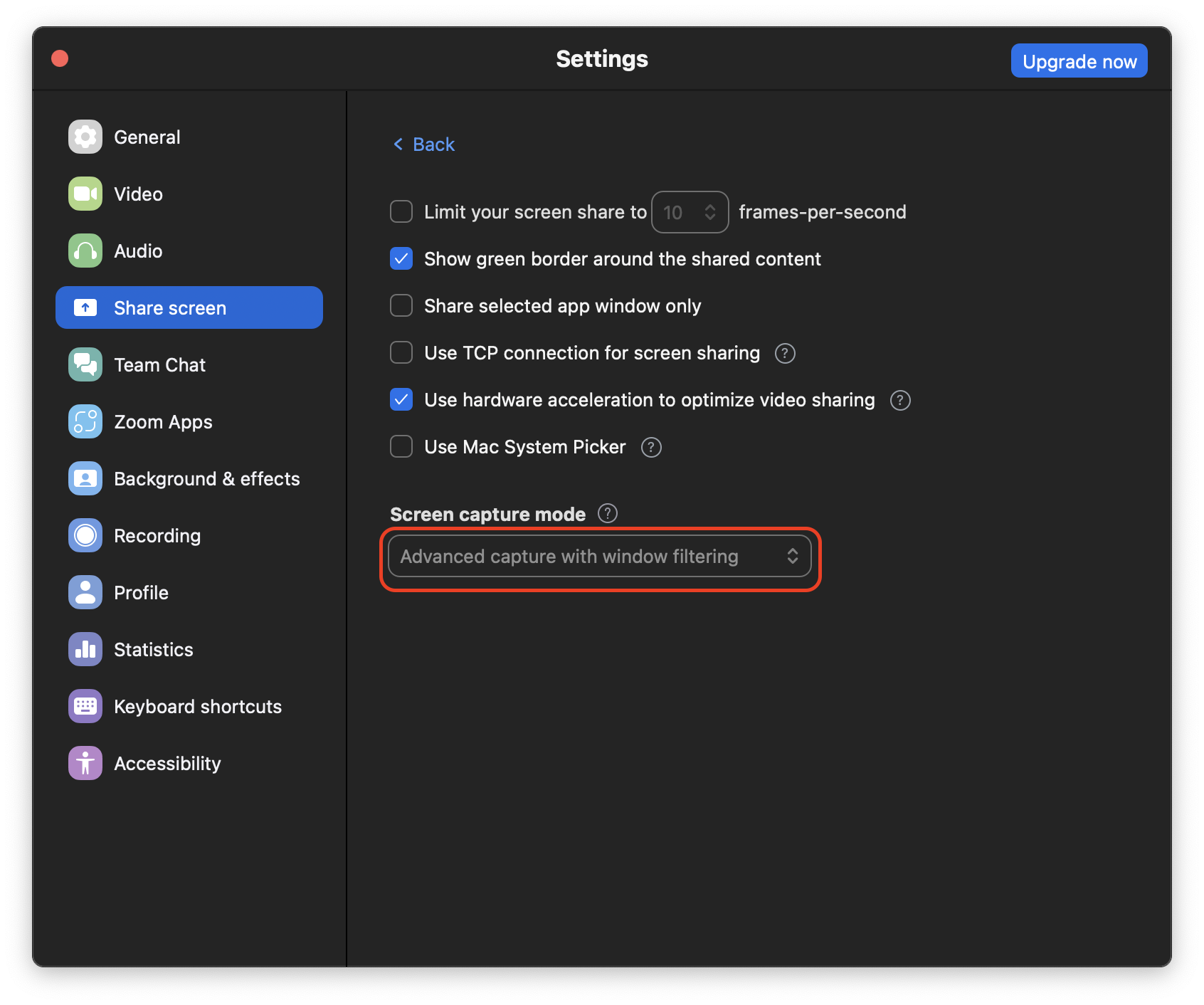
ZOOM Advanced Capture ConfigurationConfigure Zoom to enable advanced capture with window filtering for optimal app visibility:
1
Open Zoom Settings
Launch Zoom and go to Settings
2
Navigate to Share Screen
Click on “Share screen” in the left sidebar
3
Enable Advanced Capture
click “advanced” and select “Advanced capture with window filtering” in screen capture mode
Permissions
Screen Recording AccessGrant screen recording permissions to allow the app to capture your screen:
Windows
- Go to Settings > Privacy & Security > Screen recording
- Enable “Let apps access your screen”
- Add Coding Interview Buddy to the allowed list
- Restart the application
macOS
- Go to System Preferences > Security & Privacy
- Click on “Privacy” tab
- Select “Screen Recording” from the left panel
- Check the box next to Coding Interview Buddy
ℹ
Note
You may need to restart your computer after granting permissions.